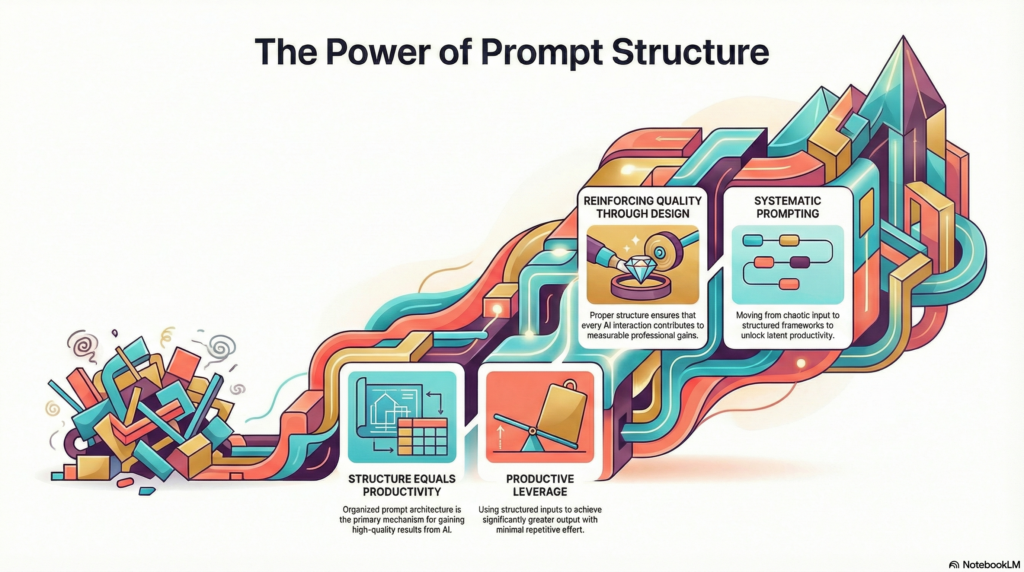
Google’s NotebookLM transitioned from experimental Project Tailwind in 2023 to a stable product in October 2024, and by December 2025, it upgraded to Gemini 3 with “significant improvements to reasoning and multimodal understanding”. But here’s what most users miss: the difference between basic NotebookLM usage and pro-level productivity isn’t the features, it’s how you prompt the system.
At Dextra Labs, we help enterprises and SMEs across the UAE, USA, and Singapore implement AI powered productivity workflows. From our work deploying NotebookLM for research teams, content operations, and knowledge management, we’ve identified the prompting strategies that separate casual users from power users.
This guide reveals 10 super prompts that unlock NotebookLM’s full potential, turning it from a simple note-taking tool into a professional research and analysis system.
What Makes NotebookLM Different?
Before diving into prompts, understand what sets NotebookLM apart from general LLMs like ChatGPT or Claude.
Grounded in Your Sources
NotebookLM doesn’t just generate text, it grounds responses in the specific sources you upload. According to As per Google Cloud Documentation, NotebookLM can process:
- PDFs and text files
- Google Docs and Slides
- Website URLs
- Microsoft Excel Workbooks (with limitations: ~150,000 active cells per sheet)
- Video files (with transcripts/subtitles)
You can aggregate and query up to 50 sources to find exact answers, with the personal version supporting up to 500,000 words per document (Google Sites).
Purpose-Built Features
As per Wikipedia, NotebookLM includes specialized outputs that general LLMs don’t offer:
- Audio Overviews: Podcast-style discussions (launched September 2024)
- Video Overviews: Visual slide-style presentations (added 2025)
- Data Tables: Structured information export to Google Sheets (December 2025)
- Mind Maps: Interactive topic navigation (2025)
- Slide Decks and Infographics: Powered by Nano Banana Pro (November 2025)
Enterprise-Grade Security
For enterprise deployments, NotebookLM Enterprise runs in a cloud-compliant environment where your data is always within your Google Cloud project and can’t be shared externally.
Now let’s explore how to maximize this tool through strategic prompting.
Super Prompt #1: Multi-Source Synthesis for Research Reports
Use Case: Combining insights from multiple research papers, articles, or reports
The Prompt:
Analyze all uploaded sources and create a comprehensive synthesis on [TOPIC].
Structure your response as:
1. Key themes that appear across multiple sources
2. Points of consensus where sources agree
3. Points of divergence where sources disagree
4. Gaps in the literature (what’s not covered)
5. Implications for [YOUR SPECIFIC CONTEXT]
For each point, cite specific sources with page numbers or section references.
Why It Works: This prompt forces NotebookLM to do comparative analysis rather than just summarizing individual sources. The structured output format ensures you get actionable insights.
Super Prompt #2: Executive Briefing with Risk Analysis
Use Case: Creating decision-ready briefings for leadership
The Prompt:
Create an executive briefing on [TOPIC] suitable for C-level presentation.
Include:
– 3-sentence executive summary
– Key findings (bullet points, max 5)
– Critical risks or concerns identified in sources
– Recommended actions with supporting evidence
– Open questions requiring further investigation
Limit to 500 words. Use business language, not academic jargon.
Why It Works: The word limit forces prioritizations, and the business language constraint makes output immediately usable. According to Google Workspace updates, NotebookLM now offers an output language selector for 35+ languages, making this work globally.
Super Prompt #3: Competitive Intelligence Matrix
Use Case: Analyzing competitor strategies, products, or market positioning
The Prompt:
Based on the uploaded sources about [COMPETITORS], create a comparison table analyzing:
Columns:
– Competitor name
– Core value proposition
– Pricing strategy
– Target market
– Key strengths (from their perspective)
– Vulnerabilities (reading between the lines)
– Recent strategic moves
After the table, provide:
1. Strategic gaps we can exploit
2. Threats to our current positioning
3. Recommended counter-strategies
Why It Works: NotebookLM’s Data Tables feature (launched December 2025) can synthesize sources into “clean, structured tables, ready for export to Google Sheets”. This prompt leverages that capability for competitive analysis.
Super Prompt #4: Technical Documentation to Training Material
Use Case: Converting dense technical docs into accessible training content
The Prompt:
Transform the uploaded technical documentation into training material for [TARGET AUDIENCE: e.g., new developers, sales team, customer success].
Create:
1. Learning objectives (what should they know after reading?)
2. Core concepts explained in simple terms with analogies
3. Common misconceptions to address
4. Hands-on exercises or scenarios
5. FAQ covering likely questions
6. Further reading (cite specific sections from source docs)
Adjust complexity to [AUDIENCE KNOWLEDGE LEVEL: beginner/intermediate/advanced].
Why It Works: NotebookLM can customize conversational style and response length based on your needs (Google Sites). This prompt creates scaffolded learning materials automatically.
Super Prompt #5: Meeting Intelligence and Action Item Extraction
Use Case: Processing meeting transcripts into structured outputs
The Prompt:
Analyze the meeting transcript and generate:
1. Meeting Summary (2-3 sentences)
2. Key Decisions Made (with who decided)
3. Action Items Table:
– Action item
– Owner
– Deadline (if mentioned)
– Priority (infer from context: High/Medium/Low)
– Dependencies (what blocks this)
4. Open Questions Requiring Follow-up
5. Topics Deferred to Future Meetings
For action items, flag any without clear owners or deadlines.
Why It Works: Google’s documentation specifically highlights this use case: “Turn meeting transcripts into a clean table of action items, categorized by owner and priority” (Google Workspace).
Super Prompt #6: Content Repurposing Across Formats
Use Case: Adapting long-form content for different channels
The Prompt:
Using the uploaded [RESEARCH PAPER / WHITEPAPER / REPORT], create content adapted for:
1. LinkedIn Post (300 words max):
– Hook opening
– 3 key insights
– Call-to-action
2. Twitter Thread (8 tweets):
– Opening tweet with hook
– 6 tweets with one insight each
– Closing tweet with takeaway
3. Email Newsletter Section (250 words):
– Subject line
– Brief intro
– Main content with visuals suggestions
– CTA
Maintain consistent core messages across all formats.
Why It Works: NotebookLM’s Gemini 3 upgrade provides better summarization and multimodal understanding, making cross-format adaptation more coherent.
Super Prompt #7: Study Guide with Customized Learning Paths
Use Case: Creating educational materials from complex sources
The Prompt:
Based on the uploaded course materials on [SUBJECT], create a comprehensive study guide:
1. Concept Hierarchy (what to learn in what order)
2. For each major topic:
– Key concepts and definitions
– Why this matters (real-world application)
– Common mistakes to avoid
– Practice questions (3 per topic)
3. Sample quiz (10 questions, multiple choice)
4. Answer key with explanations
5. Additional resources from the sources
Tailor difficulty to [STUDENT LEVEL: high school / undergraduate / graduate].
Why It Works: Google documentation confirms NotebookLM can “generate study guides, FAQs, and deep-dive discussions” and create “sample quizzes with answer keys”.
Super Prompt #8: Trend Analysis and Pattern Recognition
Use Case: Identifying patterns across time-series data or multiple case studies
The Prompt:
Analyze the uploaded sources (spanning [TIME PERIOD / MULTIPLE CASES]) to identify:
1. Macro Trends:
– What’s changing over time?
– What direction are things moving?
2. Recurring Patterns:
– What happens repeatedly?
– What are the common success/failure factors?
3. Anomalies:
– What breaks the pattern?
– What unexpected insights emerge?
4. Predictive Indicators:
– Based on patterns, what might happen next?
– What are early warning signs of [SPECIFIC OUTCOME]?
Support each finding with specific citations.
Why It Works: NotebookLM’s interactive Mind Map feature lets users “navigate complex topics, explore new connections and gain a deeper understanding”, making pattern recognition more systematic.
Super Prompt #9: Debate Preparation with Counterargument Generation
Use Case: Preparing for presentations, negotiations, or strategic discussions
The Prompt:
Based on the uploaded sources supporting our position on [TOPIC], help me prepare for debate:
1. Strongest Arguments For Our Position:
– List top 3 with evidence
– Anticipate how critics might respond
2. Weakest Points in Our Position:
– What are we vulnerable to?
– How should we address these proactively?
3. Likely Counterarguments:
– What will opponents say?
– How can we respond effectively?
4. Evidence Gaps:
– What data are we missing?
– Where do we need stronger sources?
5. Rhetorical Strategies:
– Best framing for our audience
– Analogies or examples to use
Why It Works: This leverages NotebookLM’s ability to identify consensus vs. divergence across sources, then applies that analysis strategically.
Super Prompt #10: Personal Knowledge Base Query System
Use Case: Building a searchable second brain from your reading/research
The Prompt:
I’m building a personal knowledge base on [BROAD TOPIC AREA].
For the newly uploaded source, extract:
1. Core Ideas (3-5 main concepts)
2. Key Quotes (verbatim, with page numbers)
3. Connections to Previously Uploaded Sources:
– Which existing sources does this complement?
– Where does it contradict previous material?
– What new dimensions does it add?
4. Actionable Insights for My Work on [SPECIFIC PROJECT]
5. Follow-Up Research Questions This Raises
6. Tags for Future Retrieval (suggest 5-7 keywords)
Add this to my ongoing knowledge map.
Why It Works: NotebookLM can aggregate up to 50 sources and find exact answers across them. This prompt creates a cumulative knowledge system rather than treating each source in isolation.
Pro Tips for Maximum NotebookLM Productivity
Tip 1: Use Audio Overviews for Complex Material
NotebookLM’s Audio Overview feature converts documents into podcast-style discussions. In December 2024, Google added interactive Audio Overviews where users can ask questions directly and participate in the discussion with the AI hosts.
Use when: Learning complex material where hearing conversational explanations helps comprehension.
Tip 2: Customize Audio for Your Audience
You can customize an audio overview to handle an aspect you are interested in and the podcast format places the information in a conversation with ability to adjust to a type of listening audience from student to expert levels.
Tip 3: Leverage Video Overviews for Presentations
The Video Overviews feature (added 2025) transforms document summaries into visual slide-style videos combining AI narration, images, diagrams, and structured explanations.
Use when: Creating presentation materials or explainer videos from research.
Tip 4: Export Data Tables for Further Analysis
The new Data Tables feature lets you synthesize clinical trial outcomes across multiple papers to track study years, sample sizes and statistics and export to Google Sheets.
Use when: Comparing quantitative data across sources or building datasets for analysis.
Tip 5: Use Suggested Questions When Stuck
NotebookLM provides suggested questions when you don’t know what you really should be asking, which can jumpstart analysis when you’re not sure where to begin.
NotebookLM Plus vs. Free: When to Upgrade
NotebookLM Plus (launched December 2024 for enterprise, February 2025 for individuals via Google One AI Premium) provides:
- Higher usage limits for Audio/Video Overviews and Slide Decks
- Largest notebook size with most sources per notebook
- Priority access to features like Long Slide Decks
- Watermark removal on Slide Decks and Infographics
- Enhanced output controls
Upgrade when: You’re hitting source limits, need frequent Audio Overviews, or require watermark-free professional outputs.
Conclusion: From Tool to System
NotebookLM isn’t just another AI chatbot, it’s a grounded research system built on Gemini 3 with specialized features for knowledge work. But the difference between casual usage and pro-level productivity comes down to how you prompt it.
The 10 super prompts in this guide represent patterns we’ve refined through hundreds of hours deploying NotebookLM for research teams, content operations, and knowledge management across industries.
Key takeaways:
- Structure your prompts with clear output formats
- Leverage specialized features (Audio/Video Overviews, Data Tables, Mind Maps)
- Combine multiple sources for synthesis, not just summarization
- Customize for your audience and use case
- Build systems, not one-off queries
Whether you’re a researcher, content creator, student, or knowledge worker, these prompts will help you extract maximum value from NotebookLM.