There’s a version of AI adoption that most businesses haven’t tried yet. Not another SaaS subscription. Not another chatbot widget bolted onto a website. We’re talking about a fully autonomous AI agent that lives inside your own infrastructure — one that shows up to work across WhatsApp, Slack, Discord and a dozen other channels, never takes a sick day and never phones home with your private data.
That’s exactly what OpenClaw is built for. And at Dextra Labs, we’ve helped organisations across Singapore, the United States, the United Kingdom and India get this running, from solo founders to mid-market operations teams. This guide is everything we’ve learned, condensed into a single, honest walkthrough.
Whether you want to know how to run OpenClaw after installation, how to point it at a local LLM, how to deploy it on AWS or Ubuntu, or simply how to restart the OpenClaw gateway without breaking things, you’re in the right place.
| 💡 What We Cover: Every major run mode — terminal, daemon, TUI, cloud — plus safety, commands, troubleshooting and real-world deployment patterns. Jump to any section using the headings. |
What Is OpenClaw and Why Does It Matter?
OpenClaw (formerly Clawdbot or Moltbook) is an open-source AI agent platform that gives you a persistent, always-on assistant wired into whatever tools and channels your team already uses. Unlike API-only approaches, OpenClaw provides a full runtime, a gateway that manages conversations, memory, integrations and model routing, all running on infrastructure you control.
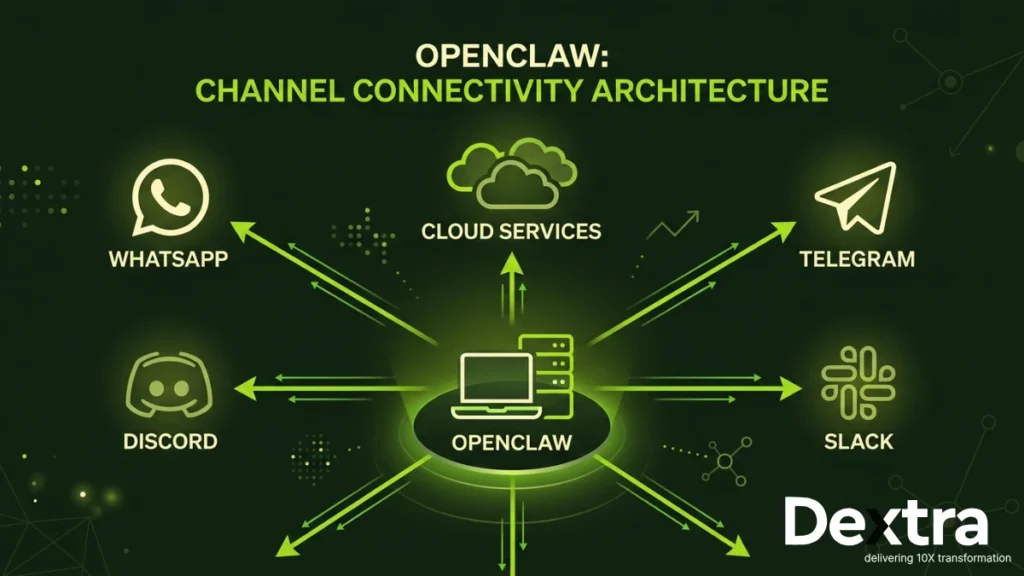
| Omni-Channel WhatsApp, Telegram, Discord, Slack, iMessage, Signal — your AI shows up where your team already communicates. | Persistent Memory Remembers context across conversations, users and sessions. Gets smarter about your workflows over time. | Data Sovereignty Run it locally or on your own cloud. No third-party stores your conversation history. | Model Agnostic Claude, GPT-4, Mistral, Llama — swap models per task or run fully local with Ollama. |
From a business standpoint, this is the difference between renting an AI and owning one. And for compliance-sensitive sectors — healthcare, legal, finance — that distinction isn’t optional. It’s essential.
Also Read: Top 5 Secure and Lightweight Alternatives to OpenClaw
Before You Run: What You Actually Need?
OpenClaw is more than an npm package. It’s a daemon-based runtime with an API gateway, a credential store and optionally a message broker layer. Before we talk about how to run it, let’s confirm your environment is ready.
System Requirements:
| Operating System macOS 12+, Windows 10/11, Ubuntu 20.04+, Debian 11+, or any modern Linux distro. | Node.js ≥ v22 OpenClaw relies on modern ESM features. Version 22 is the minimum. LTS is recommended. | Network Outbound HTTPS for cloud models. For local LLMs, fully air-gapped is possible. | RAM & Storage Minimum 2GB RAM. 4GB recommended. Storage depends on model size if running locally. |
Verify Node.js Before Anything Else
Open your terminal and run the check below, it saves hours of debugging later.
bash — verify node version
# Check your Node version
node --version
# Expected output: v22.x.x or higher

# If not installed or below v22, install via nvm (recommended)
curl -o- https://raw.githubusercontent.com/nvm-sh/nvm/v0.39.7/install.sh | bash
source ~/.bashrc
nvm install 22
nvm use 22
node --version  # Should now show v22.x.x
Don’t skip the version check.
OpenClaw uses native — experimental-vm-modules and top-level await. Running it on Node 18 or 20 will produce cryptic errors that look completely unrelated to the version mismatch.
Installation Recap (One Command)
If you haven’t installed OpenClaw yet, here’s all it takes. The installer handles Node dependencies, PATH setup and the initial directory scaffold automatically.
bash — macOS / Linux
curl -fsSL https://openclaw.ai/install.sh | bash
PowerShell — Windows
iwr -useb https://openclaw.ai/install.ps1 | iex
bash — verify install
openclaw --version
# Expected: v2025.x.x
How to Run OpenClaw: Every Method Explained
This is the section most guides skip. There’s no single ‘run’ command — OpenClaw can be started four different ways depending on your setup. Here’s exactly when to use each one.
Method 1: Running OpenClaw from the Terminal (Direct Mode)
This is the fastest way to get OpenClaw up. It runs in the foreground, so you’ll see all logs in real time — ideal for initial setup and debugging.
bash — how to run openclaw from terminal
# Start the OpenClaw gateway in the foreground
openclaw gateway start

# Or, for verbose logging (recommended when debugging)
openclaw gateway start --verbose

# Check that it's alive
openclaw gateway status
You’ll see output like this if it’s working:
terminal output
✓ Gateway is running
✓ Port: 18789
✓ Status: healthy
✓ Channels: whatsapp, telegram
✓ Model: claude-sonnet-4-5
💡 Dashboard: Once you see the gateway running, open http://127.0.0.1:18789/ in your browser, or run openclaw dashboard to open it automatically.
Method 2: Running OpenClaw as a Background Daemon (Recommended for Production)
Running in the terminal means it dies when you close the window. For anything beyond testing, you want it running as a daemon — a background process that starts automatically, survives terminal closures and restarts on reboot.
bash — install and start openclaw daemon
# Install and start as a system daemon (persists across reboots)
openclaw gateway --install-daemon

# Verify it's running in the background
openclaw gateway status

# View live logs (even while running in background)
openclaw logs --follow

# Restart after config changes
openclaw gateway restart

# Stop the daemon
openclaw gateway stop
On macOS, this registers a launched agent. On Linux, it creates a systemd service. On Windows, it installs a Windows Service. In all cases, OpenClaw will restart automatically if it crashes.
Method 3: Running OpenClaw via TUI (Text User Interface)
The OpenClaw TUI is the most underrated feature. It’s an interactive terminal dashboard, active channels, request/response logs, model usage, memory state — all without leaving the terminal.
bash — how to run openclaw tui
# Launch the interactive terminal dashboard
openclaw tui

# Shortcut keys inside TUI:
# [Tab]   — switch between panels
# [L]     — toggle log view
# [R]     — restart gateway
# [Q]     — quit TUI (gateway stays running)
Method 4: How to Run OpenClaw After Install (First-Time Onboarding)
If you’ve just finished installing and want to do full first-time setup, connecting an AI provider, naming your agent, wiring up channels — the onboarding wizard handles everything:
bash — first run after installation
# First-time setup wizard
openclaw onboard --install-daemon

# The wizard will ask you to:
#  1. Name your assistant
#  2. Select an AI provider (Anthropic / OpenAI / Ollama)
#  3. Enter your API key
#  4. Choose a model
#  5. Set up channels (optional at this stage)
#  6. Install and start the daemon
✅ Dextra Labs Tip: Always pass –install-daemon during onboarding. It saves you a separate step and ensures OpenClaw survives a restart before you’ve finished your coffee.
OpenClaw Commands: The Complete Cheatsheet
Here are the essential OpenClaw commands you’ll use on a daily basis, organised by function. Bookmark this section.
bash — openclaw commands reference
## GATEWAY CONTROL
openclaw gateway start            # Start the gateway
openclaw gateway stop             # Stop the gateway
openclaw gateway restart          # Restart (apply config changes)
openclaw gateway status           # Check health + active channels
openclaw gateway --install-daemon # Register as system service
openclaw gateway --port 18790     # Use alternate port

## LOGS & MONITORING
openclaw logs                     # View recent logs
openclaw logs --follow            # Tail logs in real time
openclaw tui                      # Open interactive TUI dashboard
openclaw dashboard                # Open web dashboard in browser

## CONFIGURATION
openclaw config edit              # Open config in default editor
openclaw config show              # Print current config to terminal
openclaw config validate          # Check config for errors

## CHANNELS
openclaw channels list            # List all configured channels
openclaw channels login whatsapp  # Authenticate WhatsApp
openclaw pairing approve whatsapp +1555000123  # Approve a contact

## SKILLS / TOOLS
openclaw skills list              # List installed skills
openclaw skills install web-search
openclaw skills remove web-search

## GENERAL
openclaw --version                # Check installed version
openclaw --help                   # List all commands
How to Restart OpenClaw (and When You Need To)?
Restarting is the most common maintenance task. Any time you edit the config file, add or remove a channel, or update a skill, a restart is required to apply changes.
bash — how to restart openclaw
# The standard restart command
openclaw gateway restart

# If the gateway is frozen or unresponsive, force-kill and restart
openclaw gateway stop --force
openclaw gateway start

# Restart the systemd service directly (Linux)
sudo systemctl restart openclaw

# Restart the launchd service (macOS)
launchctl kickstart -k gui/$(id -u)/com.openclaw.gateway
When do you need to restart? After editing openclaw.json, after installing or removing skills, after changing channel credentials, after a model switch and after any updates to your SOUL.md personality file.
How to Run OpenClaw Locally (100% On Your Machine)?
Running OpenClaw locally means the entire stack — gateway, model calls and conversation memory — stays on your hardware. No cloud, no third-party servers, no data leaving your network. This is the setup we recommend for law firms, healthcare operators and any organisation with strict data residency requirements.
Step 1: Install Ollama (your local model runtime)
Ollama lets you run Llama 3, Mistral, Phi-3 and dozens of other open-source models locally. Visit ollama.ai and install for your OS, then pull a model: ollama pull llama3
Step 2: Verify Ollama is running
Ollama exposes a local API at http://localhost:11434. Confirm with: curl http://localhost:11434/api/tags — you should see your installed models listed.
Step 3: Point OpenClaw at your local model
Edit your config (openclaw config edit) and set the provider to ‘ollama’ with the local endpoint. See the code block below for the exact structure.
Step 4: Restart the gateway
Run openclaw gateway restart and verify the status. OpenClaw will now route all requests to your local Ollama instance — fully offline-capable.
openclaw. json - how to run openclaw with local llm
{
"provider": "ollama"
"ollamaEndpoint": "http: //localhost:11434"
"models": {
  "chat": "llama3",
  "quick": "phi3"
},
"memory": {
"enabled": true,
"backend": "local"
  }
}
Model Sizing Tip from Dextra Labs: For most business Q&A and summarisation tasks, a 7B parameter model (like Llama 3 8B)
running on a modern laptop with 16GB RAM performs well. For coding, analysis, or complex
reasoning, consider 13B+ models on a workstation or cloud Gpu.
How to Run OpenClaw on Ubuntu?
Ubuntu is the most common server environment for OpenClaw deployments. Here’s a clean, production-grade setup from a fresh Ubuntu 22.04 instance:
bash — how to run openclaw on ubuntu 22.04
# 1. Update system packages
sudo apt update && sudo apt upgrade -y

# 2. Install Node.js 22 via NodeSource
curl -fsSL https://deb.nodesource.com/setup_22.x | sudo -E bash -
sudo apt-get install -y nodejs

# 3. Verify
node --version   # v22.x.x

# 4. Install OpenClaw
curl -fsSL https://openclaw.ai/install.sh | bash
source ~/.bashrc

# 5. Run the onboarding wizard
openclaw onboard --install-daemon

# 6. Verify systemd service is active
sudo systemctl status openclaw

# 7. Enable auto-start on reboot
sudo systemctl enable openclaw
How to Run OpenClaw on AWS?
AWS is the go-to for teams that want horizontal scalability, managed networking and enterprise-grade uptime. The typical OpenClaw AWS setup uses an EC2 instance for the gateway, RDS or DynamoDB for persistent memory and an ALB for incoming channel webhooks.
bash — how to run openclaw on aws ec2
# Launch a t3.medium (minimum) Amazon Linux 2023 or Ubuntu 22.04
# instance via AWS Console or CLI, then SSH in:
ssh -i your-key.pem ubuntu@your-ec2-ip

# Follow Ubuntu setup (see above), then additionally:

# Allow gateway port through security group (AWS Console)
# Inbound rule: TCP 18789 from your IP range

# Store API keys securely using AWS Secrets Manager
aws secretsmanager create-secret \
  --name openclaw/anthropic-key \
  --secret-string '{"ANTHROPIC_API_KEY":"sk-ant-..."}'

# Reference in openclaw.json:
# "apiKeySource": "aws-secrets-manager"
# "secretName": "openclaw/anthropic-key"

# Install and start daemon
openclaw onboard --install-daemon
⚠️ Security Note: Never hardcode API keys in your openclaw.json on a cloud instance. Always use AWS Secrets Manager, environment variables loaded at boot, or an IAM role with appropriate permissions.
How to Run OpenClaw with DigitalOcean?
DigitalOcean is a favourite for smaller teams and startups — simpler pricing, great developer experience and Droplets that just work. OpenClaw runs beautifully on a $24/month Droplet.
bash — how to run openclaw with digitalocean
# Recommended Droplet: 2 vCPU / 4GB RAM / Ubuntu 22.04
# Create via DigitalOcean Console, then SSH:
ssh root@your-droplet-ip

# Use DigitalOcean firewall to restrict port 18789
# (Add via Console: Networking > Firewalls)

# Optional: use Managed PostgreSQL for memory persistence
# Add connection string to openclaw.json:
# "memoryBackend": "postgres"
# "databaseUrl": "postgresql://..."

# Use DigitalOcean Spaces (S3-compatible) for file storage
# "storageBackend": "s3"
# "s3Endpoint": "https://nyc3.digitaloceanspaces.com"| ✅ Dextra Labs Recommendation: For DigitalOcean deployments, pair OpenClaw with a Managed PostgreSQL database for durable memory. It costs around $15/month extra and eliminates the most common failure mode in production: agent memory getting wiped on a Droplet restart. |
Which Deployment Should You Choose?
Here’s a practical comparison across all the major run modes, from a team that has deployed OpenClaw in each of them:
| Run Mode | Complexity | Privacy | Cost | Best For |
| Local (laptop) | Low | Maximum | Hardware only | Devs, solo ops |
| Local LLM (Ollama) | Medium | Maximum | Hardware only | Air-gapped, compliance |
| Ubuntu Server | Medium | High | Server cost | Self-hosted IT |
| DigitalOcean | Low–Medium | Good | ~$24–$48/mo | Startups, small teams |
| AWS EC2 | High | Good | $30–$200+ | Enterprise, multi-region |
How to Run OpenClaw Safely?
OpenClaw gives your AI agent real agency, it can browse the web, run commands, access files and message people on your behalf. That power needs guardrails. Here’s how to run OpenClaw safely in production, based on what we’ve seen go wrong in real deployments.
| 🔒 API Key Management: Never paste your API key directly into openclaw.json if the config file lives on a shared server. Use environment variables or a secrets manager. Rotate keys quarterly. Set spending limits in your Anthropic or OpenAI dashboard. |
The Pairing System: Your First Line of Defence
OpenClaw’s pairing system ensures only approved contacts can interact with your AI across messaging channels. This is enabled by default — don’t disable it.
bash — manage the openclaw pairing whitelist
# Approve a WhatsApp number (full international format)
openclaw pairing approve whatsapp +6591234567

# Approve a Telegram user
openclaw pairing approve telegram @username

# List all approved contacts
openclaw pairing list

# Revoke access
openclaw pairing revoke whatsapp +6591234567
Set Token and Cost Limits
openclaw.json — cost controls
{
  "limits": {
    "maxTokensPerDay": 200000,
    "maxTokensPerUser": 20000,
    "alertWhenOver": 150000,
    "pauseWhenOver": 200000
  }
}
Security Checklist for Production OpenClaw:
- API keys stored in environment variables or secrets manager — never in plain config
- Pairing whitelist enabled and reviewed regularly
- Gateway port (18789) firewalled — not publicly exposed
- Daily token limits set to prevent runaway costs
- Logs reviewed periodically for unexpected activity
- Skills/tools restricted to only what your workflow needs
- Workspace directory excluded from version control (.gitignore ~/.openclaw/)
- Regular OpenClaw updates applied: openclaw update
Understanding the OpenClaw Gateway
The gateway is the core process that ties everything together. It manages model requests, channel adapters, memory reads/writes, skill dispatch and rate limiting. Understanding it saves you hours of debugging.
| 🔌 Default Port: 18789 The gateway listens on 127.0.0.1:18789 by default. Change with –port flag if there’s a conflict. | 📁 Config Location All settings live in ~/.openclaw/openclaw.json. Edit with: openclaw config edit | 📋 Log Location Logs written to ~/.openclaw/logs/. Tail them with: openclaw logs –follow | 🧩 SOUL.md Your AI’s personality is defined in ~/.openclaw/workspace/SOUL.md. Edit it, then restart the gateway. |
Setting Up Channels: WhatsApp, Telegram, Discord
bash — connect openclaw to whatsapp
# Initiate WhatsApp login (generates QR code)
openclaw channels login whatsapp

# Scan with WhatsApp > Linked Devices > Link a Device

# Approve your own number to test
openclaw pairing approve whatsapp +YOUR_NUMBER
Telegram
openclaw.json — add telegram bot token
{
  "channels": {
    "telegram": {
      "botToken": "1234567890:ABCDEFxxxxxxxxxxxxxxxxxxxxxxxxxx"
    }
  }
}
Get your token from @BotFather on Telegram. After adding it, run openclaw gateway restart and message your bot, it should reply instantly.
Discord
openclaw.json — add discord bot token
{
  "channels": {
    "discord": {
      "token": "your-discord-bot-token-here"
    }
  }
}
Want OpenClaw Running in Your Business by Next Week?
Dextra Labs specialises in deploying and customising AI agent infrastructure for organisations that can’t afford to get it wrong.
→ Book a Free Strategy Call at DextralabsTroubleshooting: The 7 Most Common OpenClaw Problems
❌ “command not found: openclaw” after installation
Close your terminal completely and open a fresh one. The installer updates your PATH, but the current session doesn’t pick up the change. If it still doesn’t work, manually add: export PATH=”$HOME/.openclaw/bin:$PATH” to your .bashrc or .zshrc.
❌ Gateway status shows “not running” even after start
Check if something else is using port 18789: lsof -i :18789. If occupied, start OpenClaw on another port: openclaw gateway start –port 18790. Also update your config to match the new port.
❌ AI isn’t responding to messages
Check openclaw logs –follow for API errors. Most commonly: invalid API key, insufficient credits, or rate limiting. Verify your key and account balance. Then run openclaw config validate to catch syntax errors.
❌ WhatsApp keeps disconnecting after a few hours
WhatsApp’s Linked Devices connection depends on your phone staying online. Keep your phone connected to a stable network, don’t force-close WhatsApp and ensure battery optimisation isn’t killing the app. Re-scan the QR code if needed: openclaw channels login whatsapp.
❌ Costs are higher than expected
Add daily token limits to your config (see the safety section above). Consider routing low-complexity tasks to a cheaper model like claude-haiku-4-5 and reserving smarter models for queries that actually need them.
❌ “Module not found” or ESM errors on startup
This is almost always a Node.js version issue. Run node –version — if it’s below v22, update using nvm: nvm install 22 && nvm use 22. Then retry.
❌ OpenClaw works locally but won’t respond via cloud
Check your firewall rules. Port 18789 must be open to the services/IPs that need to reach it. Also verify your gateway is bound to 0.0.0.0 rather than 127.0.0.1 if you’re on a cloud server.
Final Thoughts
Running your own AI agent sounds complicated until you’ve done it once. OpenClaw is paired with a clear understanding of how the gateway works, where to run it and how to keep it secure. It is genuinely one of the most capable self-hosted AI stacks available today.
The difference between a hobbyist OpenClaw setup and a production-grade one isn’t the technology, it’s the operational decisions: which model for which task, how memory persists across restarts, how API credentials are stored and how the system behaves when something unexpected happens.
At Dextra Labs, we help teams get from ‘this is cool in a terminal’ to ‘this is running quietly in the background and saving our team 20 hours a week.’ If that’s where you want to be, we’d love to talk.
Frequently Asked Questions (FAQs):
Q. How to run OpenClaw in terminal vs. as a service — which is better?
Terminal mode is best for development and debugging, you get real-time logs and can kill it instantly. Service/daemon mode is what you want in production. It persists across reboots, restarts on crash and doesn’t depend on an open terminal session. For anything beyond testing, always install as a daemon.
Q. Can I run OpenClaw without an internet connection?
Yes, when paired with a local LLM via Ollama. The gateway itself runs locally and if your model is pulled and cached locally, OpenClaw can operate fully air-gapped. Channel integrations like WhatsApp still require internet; only the AI processing becomes local.
Q. How do I switch models after the initial setup?
Open your config with openclaw config edit, update the “models” section, save, then run openclaw gateway restart. The change takes effect immediately.
Q. Is OpenClaw suitable for business use, or is it just for hobbyists?
OpenClaw is increasingly being used in real business environments, customer support, internal ops, sales enablement and developer tooling. Production deployments benefit significantly from proper configuration, security hardening and monitoring — that’s where consulting partners like Dextra Labs add value.